
Maker guide · helpful hints

Helpful hints for batch name files

The controls that matter most when you prep a real order: fit the canvas, optimize sheets, set spacing, lock exact mm sizes, scoot letters into clean welds, move keychain holes and export files that cut right in xTool, LightBurn, Glowforge or Cricut.

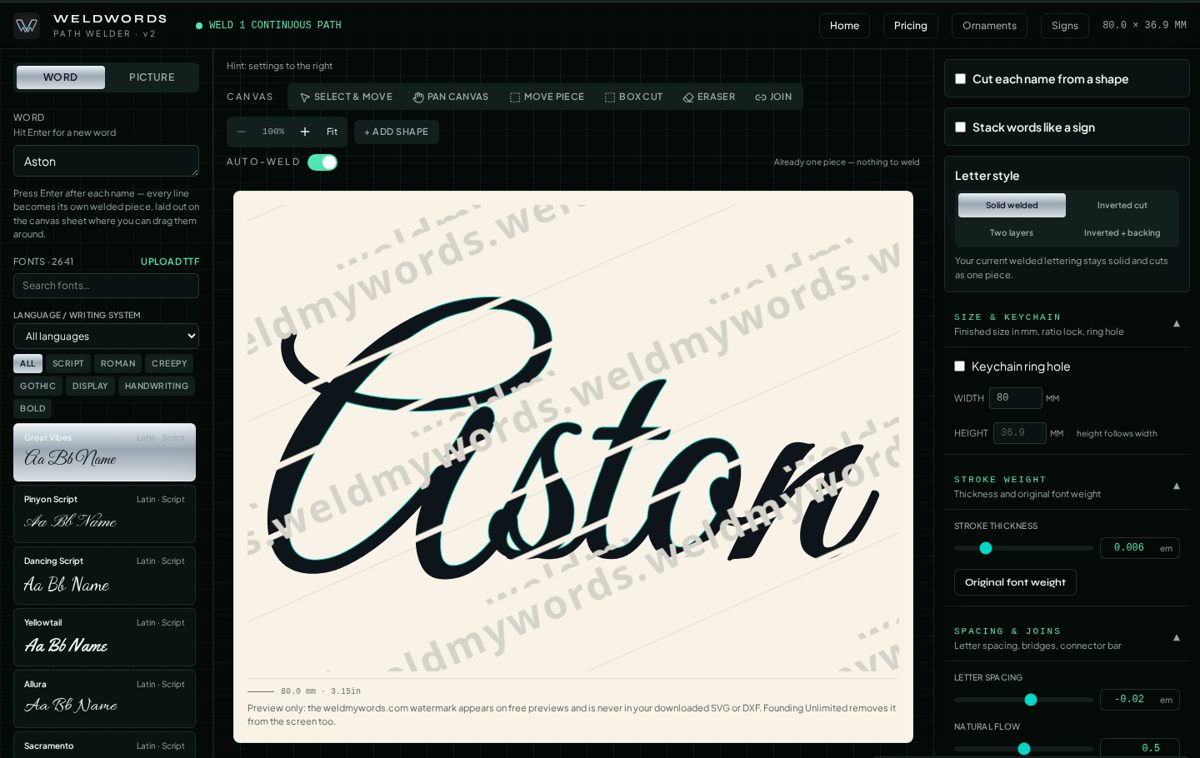
The WeldWords studio: names list on the left, canvas in the middle, settings on the right

Moving around the canvas

WeldWords canvas toolbar with Select & move, Pan canvas, zoom and Fit buttons

Fit to screen when you get lost

You zoomed into one join and can't find the rest of the name or sheet.

  1. Click Fit above the canvas.
  2. The whole name or full sheet re-centers with a margin around it.

Hit Fit after changing font, size or sheet size so you're always looking at the real layout.
Pan without grabbing letters

Big batches run off the screen.

  1. Drag empty space, scroll, or hold the middle mouse button to move the view.
  2. Shift + scroll moves sideways.
  3. Or switch on Pan canvas so dragging never moves a name.

Nudge one awkward letter

A letter sits too far from its neighbor.

  1. With Select & move, drag the letter sideways — the letters after it come along so nothing collides.
  2. Hold Ctrl (⌘ on Mac) while dragging to move only that one letter.

Batch orders

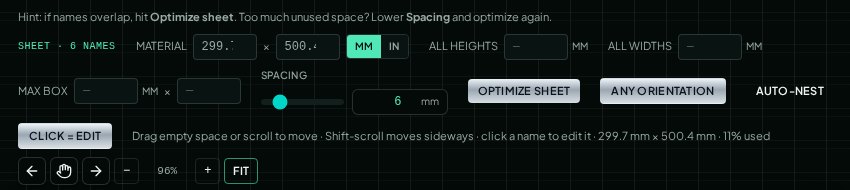
WeldWords batch sheet controls: material size, all heights, all widths, spacing and Optimize sheet

One name per line

Pasting a customer list.

  1. Press Enter after each name — every line becomes its own welded piece.
  2. Commas stay normal commas in the text.

Set your material first

Before optimizing.

  1. Type your sheet width and height under Material (mm or inches).
  2. The sheet count updates as names are laid out.

Overlapping names? Optimize sheet

Names touch, overlap or spill past the edge.

  1. Click Optimize sheet.
  2. Turn on Any orientation to let names rotate for a tighter fit.

Too much empty space? Lower spacing

Material is being wasted between pieces.

  1. Drag Spacing down (e.g. 6 → 3 mm).
  2. Click Optimize sheet again.

Keep enough spacing for your kerf and hold-down — 3 mm is a common floor for acrylic.

Fix one name without touching the rest

One name needs a tweak.

  1. Click that name on the sheet to edit it.
  2. Letter moves and its keychain hole stay on that name only.

Sizing that matches your laser software

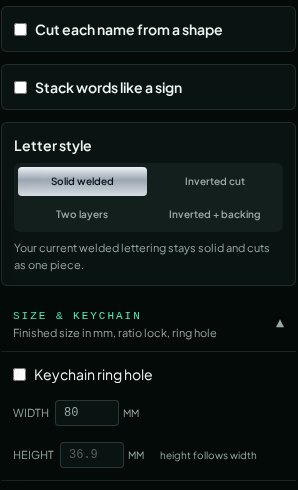
WeldWords right settings panel with letter style, width and height in mm, and keychain ring hole

Same height for every name

A batch should look uniform.

  1. Type only All heights (e.g. 38 mm).
  2. Widths follow each name so long names aren't squished.

Exact width and height

Fitting fixed blanks or tags.

  1. Type both width and height.
  2. Each name is set to exactly that box in the SVG and DXF.

Two-layer pieces register

Top lettering on a backing.

  1. The size you type is the backing.
  2. Top-only files export at the matching registered size so the layers glue up aligned.

Clean welds

Batch of script names welded into one-piece shapes on the WeldWords sheet

Scoot instead of bridging

Print or serif letters sit apart.

  1. Raise Scoot so neighbors slide together until their strokes touch.
  2. No extra bars are added — the font keeps its look.

Snug letters for print fonts

Natural spacing is too wide to weld.

  1. Turn on Snug letters — it's off until you choose it.

Check Weld integrity before export

Every time.

  1. Look for 1 PIECE above the canvas.
  2. If it shows more pieces, scoot, nudge or use Join on the loose part.

Cutting names out of a board

Letters cut from a sign or shape.

  1. Pick Inverted cut so centers of O, A, B and e stay attached with small tabs.

Keychains and exporting

Move the keychain hole

The hole lands on a thin swoop.

  1. Turn on Keychain ring hole.
  2. Drag the ring onto a thick stroke — in a batch it moves for that name only.

Full sheet vs. each name

Downloading.

  1. Full sheet SVG = your nested layout, ready to cut.
  2. Each name as its own file = separate files for every name.

Cut the inside first

Setting up in LightBurn or xTool.

  1. Files keep TEXT and SHAPE on separate layers.
  2. Run the inside/TEXT layer first, then the outer SHAPE, so pieces don't shift mid-cut.

Change font, keep the order

A customer wants a different style.

  1. Pick a new font — the whole list rebuilds with your sizes and sheet.

Try it on your next order

Paste your list, hit Fit, optimize the sheet and check for 1 PIECE before you export.

Open the maker